
Projects are a new feature in the AdBooks application that allows you to manage your projects, invoices, quotes, and financial status more easily, clearly, and accurately – all in one place.
⚙️ Project Activation #
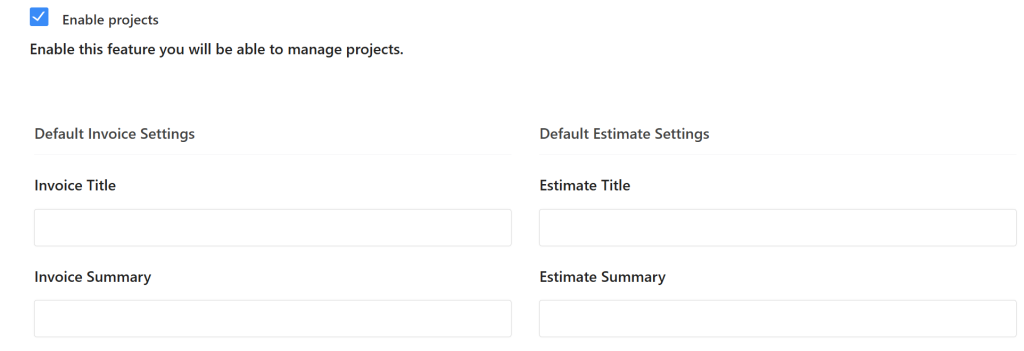
Projects are enabled by default and can be managed on the Invoice Customization page:
👉 https://app.adbooks.co/admin/business/invoice_customize
You can:
- enable or disable the feature by checking/unchecking the Enable Projects option
- confirm changes by clicking Save Changes
When projects are enabled, a new Projects item automatically appears in the main menu of the application, along with additional pop-up windows in the main menus.
1. Projects Page – Overview and Filtering #
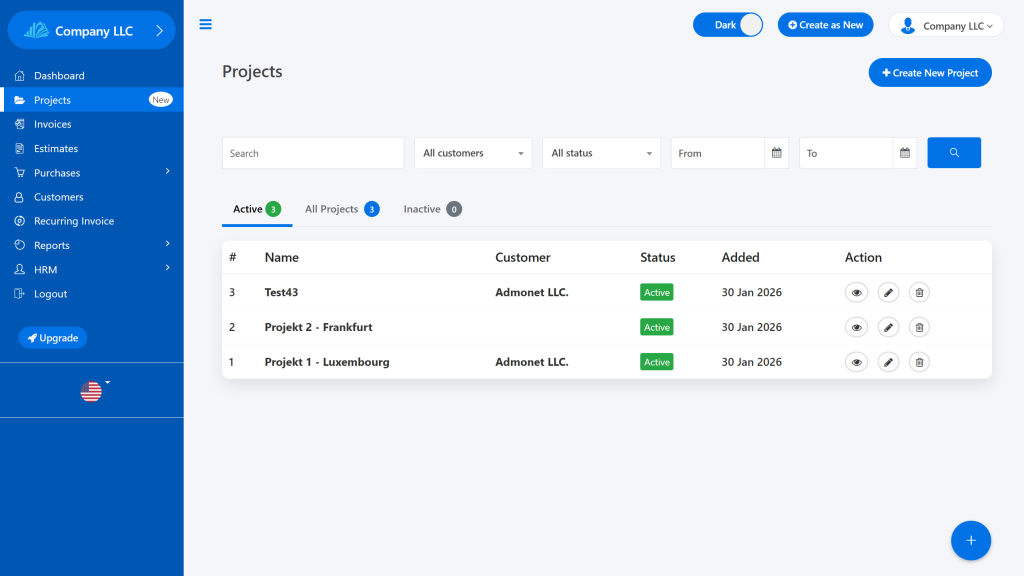
On the Projects page, three tabs are available:
- Active – active projects
- All Projects – all projects
- Inactive – inactive or completed projects
Project Filtering #
You can quickly find a project using the following options:
- Search – search by project name
- All Customers – filter by client
- All Status – filter by status
- From / To – filter by date
2. Data in the Projects Table #

Each project in the table displays the following information:
- Name – project name
- Client – name of one or more clients (if multiple, separated by commas)
- Status – Active or Inactive (depending on the tab)
- Added – project creation date
- Overview – access to the project view
- Edit – change the project name and status
- Delete – delete the project
Project Deletion Options #
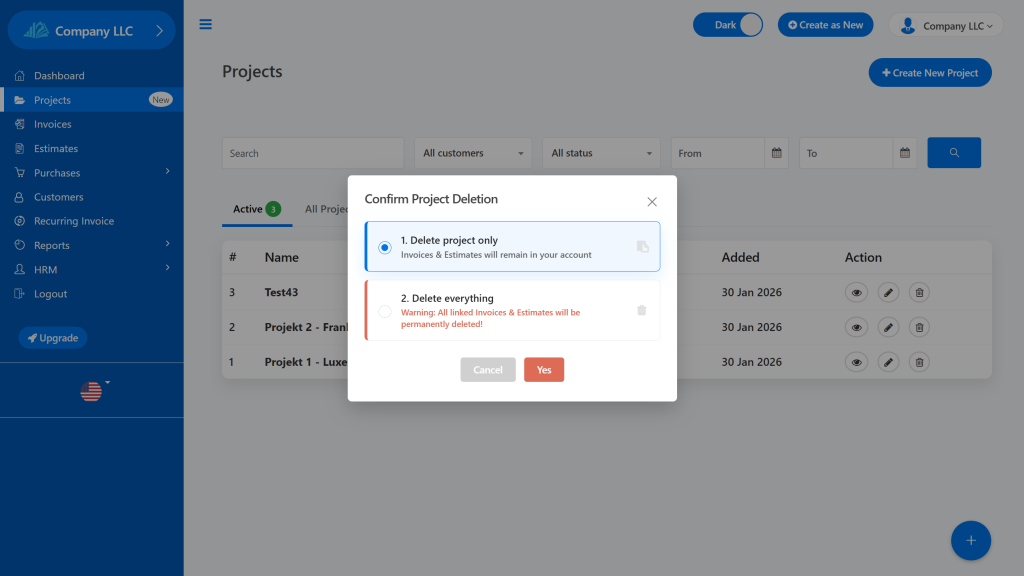
When deleting, two options are available:
- Delete project only
(Invoices and Estimates will remain in your account) - Delete everything
⚠️ Warning: All linked invoices and Estimates will be permanently deleted!
Before confirming the deletion, carefully check what you are deleting – data cannot be recovered.
3. Creating a New Project #
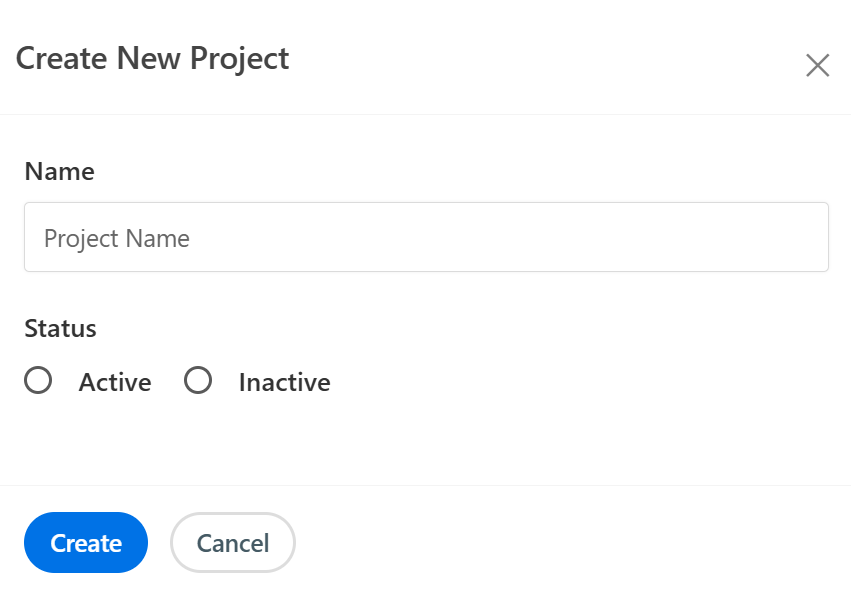
You can create a new project by clicking Create New Project.
A popup window will open, where you can:
- enter the project name
- select the status: Active or Inactive
If no status is selected, the project will be created as Inactive by default, which you can change later.
After creation, you will be automatically redirected to the project view – the page for that project.
4. Project View – Project Management #

On the project page, everything related to that project is available:
- Project name and status
- Buttons Edit Project and Delete
Creating Invoices and Quotes #
By clicking the blue Create button, you can:
- create an invoice
- create a quote
All invoices and quotes are automatically linked to this project.
5. Project Financial Statistics #

At the top of the project page, 4 key charts (statistics) are displayed:
- Total Amount – total amount of all created invoices
- Total Paid – total amount of paid invoices
- Total Due – amount still to be collected
- Total Estimate – total amount of all quotes
This data is automatically updated with every change (payment, new invoice, new estimate).
6. Invoices in the Project #
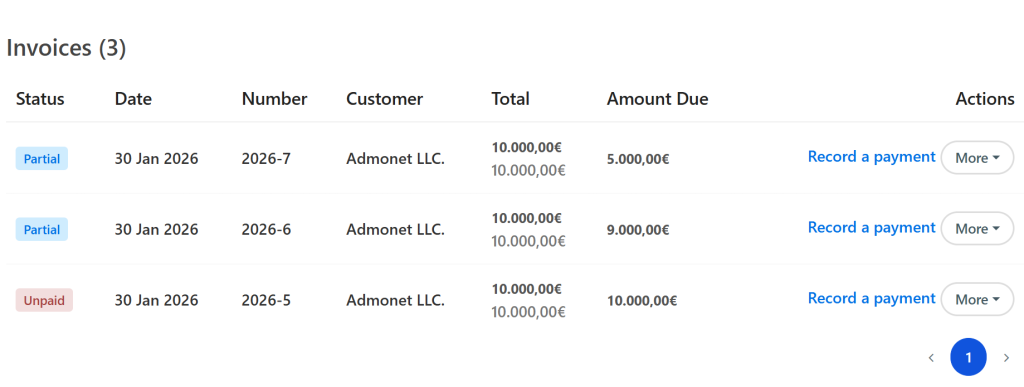
Below the statistics is the Invoices section, with the number of invoices shown in parentheses.
The tables and options are the same as on the standard Invoices page:
Status | Date | Number | Client | Total | Amount Due | Actions
For unpaid invoices, the Record Payment option is available, which:
- reduces the Outstanding Amount
- increases the Total Paid
Available actions: #
- View
- Send
- Convert to Recurring Invoice
- Export as PDF
- Preview as customer
- Edit
- Delete
7. Estimate in the Project #
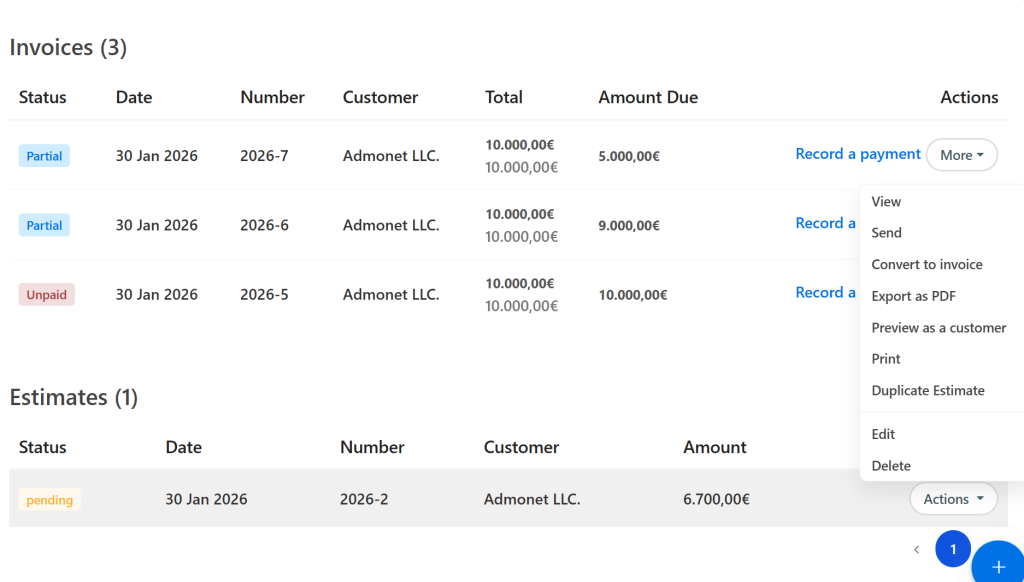
Below the Invoices section are the Quotes, with the number of quotes shown in parentheses.
The available options are the same as on the standard Quotes page:
- View
- Send
- Convert to Invoice
- Export as PDF
- Preview as customer
- Duplicate Estimate
- Edit
- Delete
8. Projects in the Application Main Menu
When projects are enabled, the application’s main menu offers additional options.
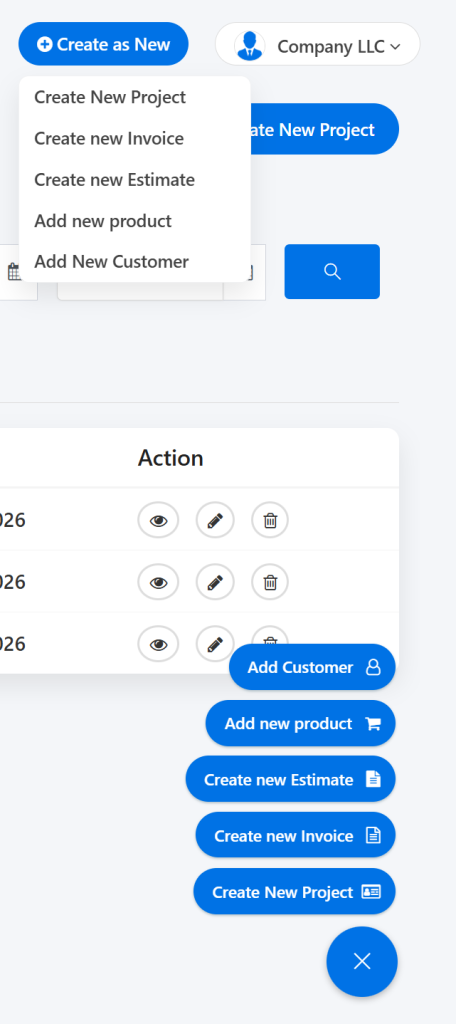
Create New Project #
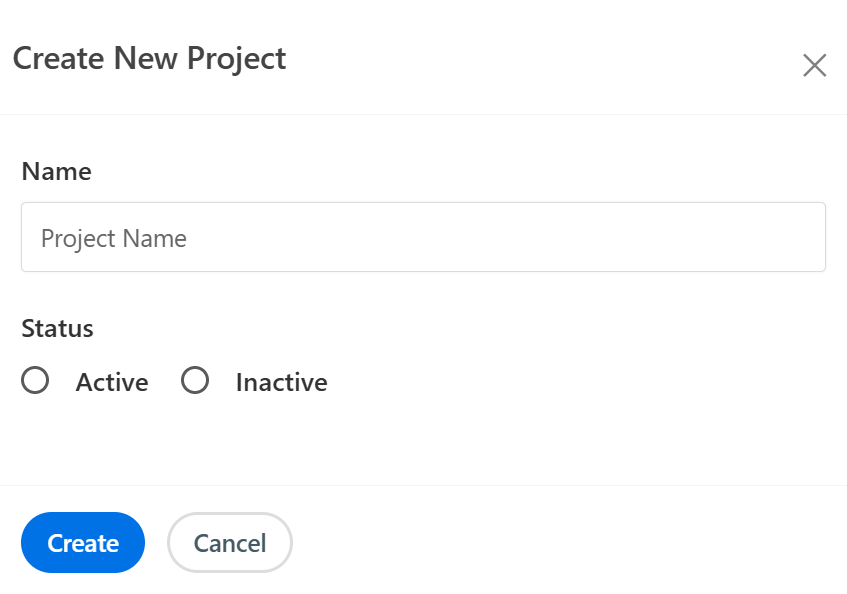
Quick Project Creation Directly from the Main Menu
Create New Invoice #
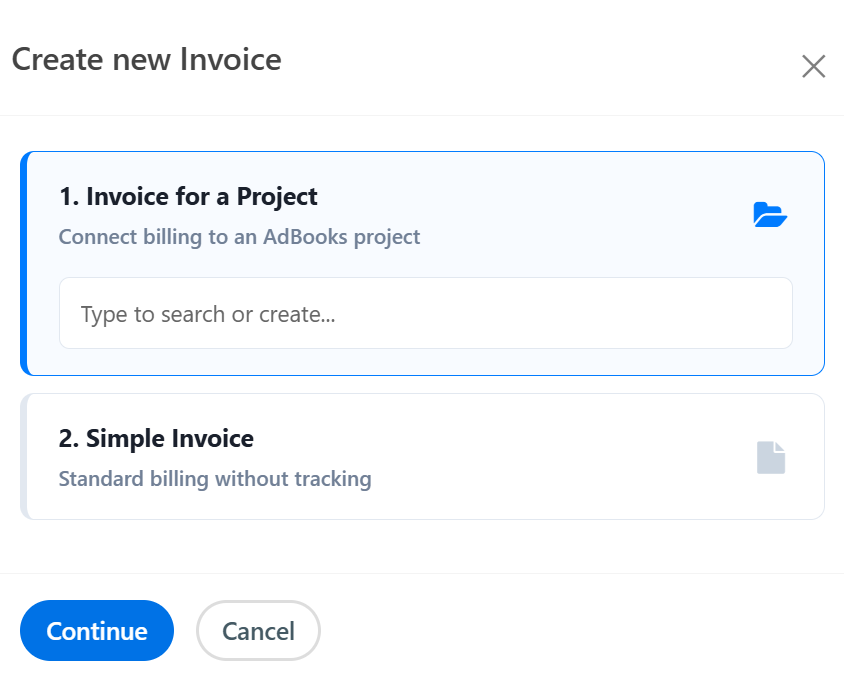
A popup window opens with two options:
- Invoice for Project – link the invoice to a project
- Simple Invoice – invoice without a project
Create New Estimate #
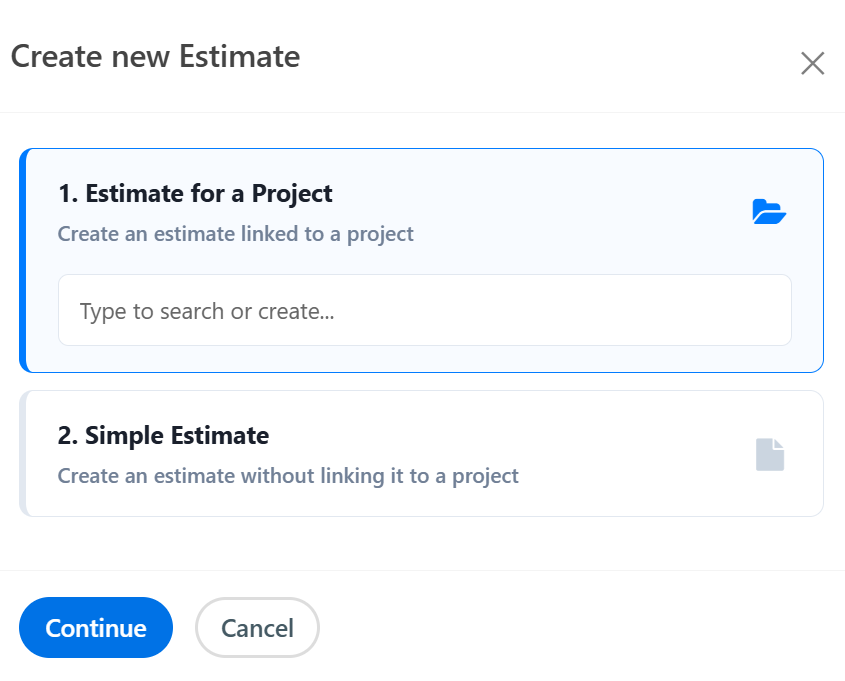
A popup window opens with two options:
- Quote for Project – link the quote to a project
- Simple Quote – quote without a project
9. Package Limitations #
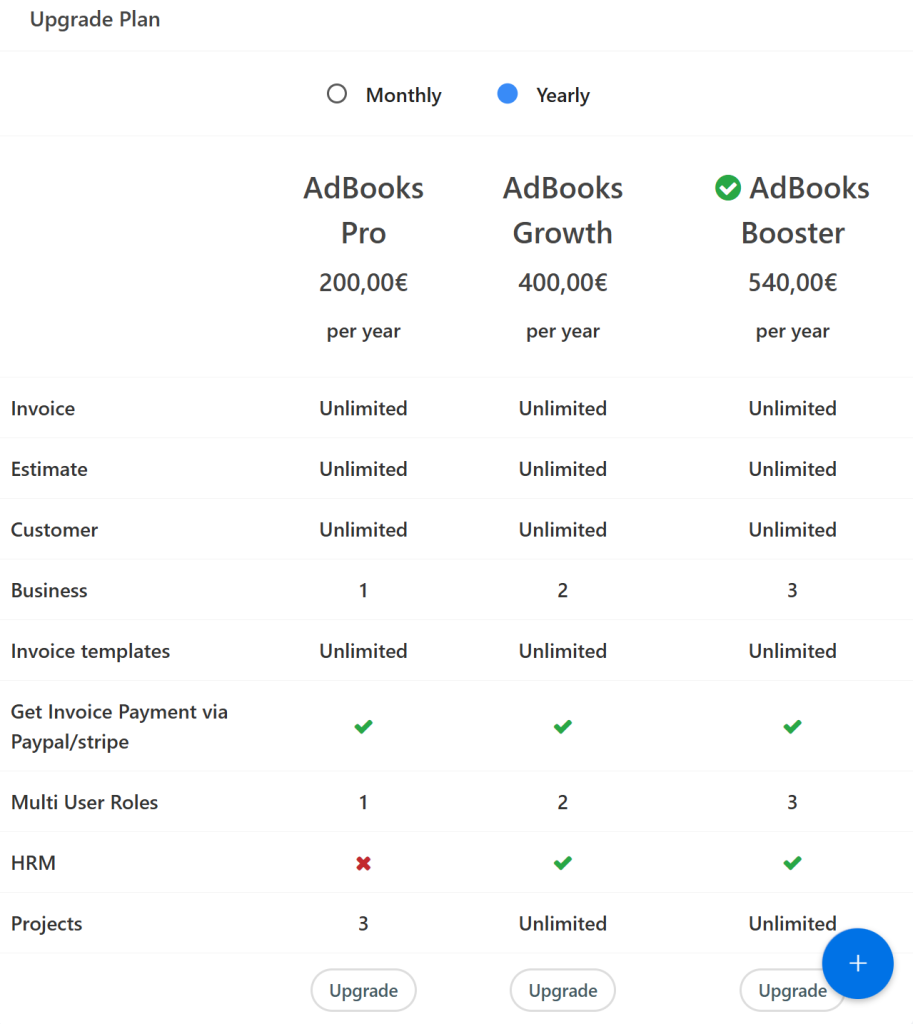
- Pro Package – maximum 3 projects
- Growth & Booster Packages – unlimited number of projects
This feature allows users to have better financial control, a clearer overview of projects, and higher profitability.
For any additional questions, you can contact us via email at info@adbooks.co.