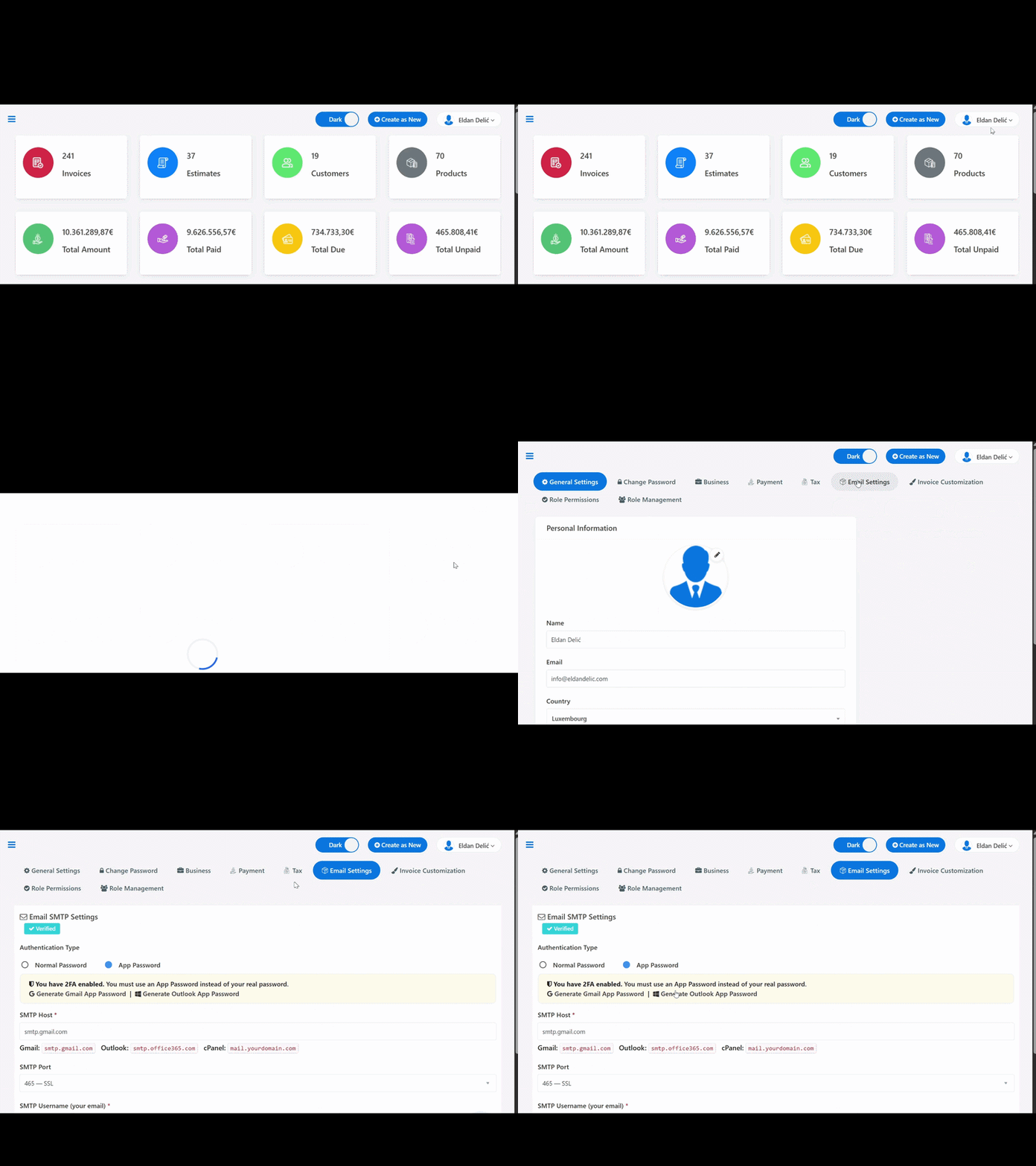
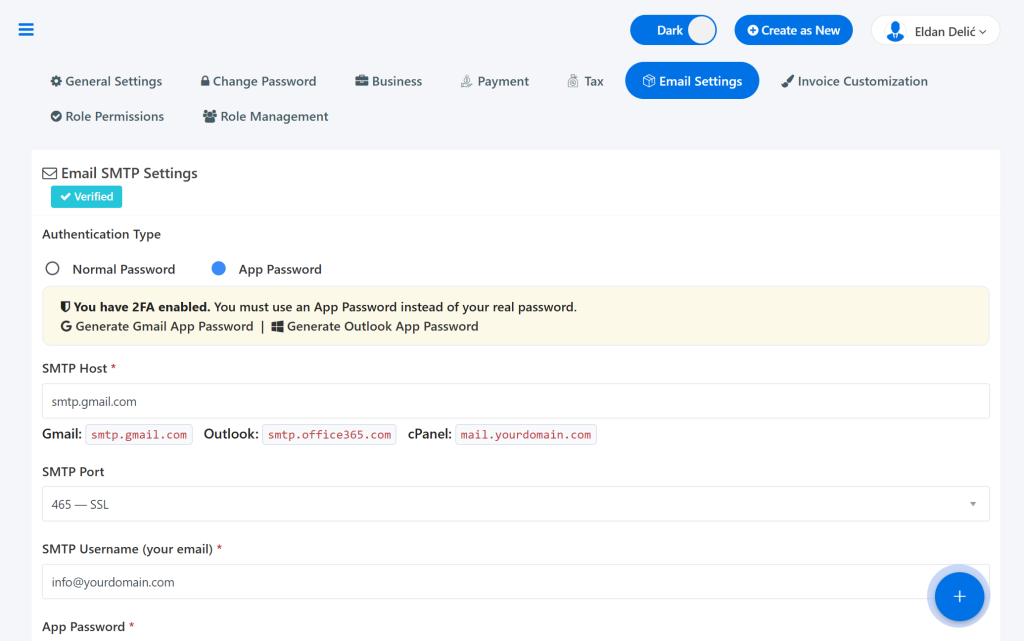
A new page, “Email Settings”, has been added to the AdBooks application settings. Every user must connect their email address in this section of the application to enable sending documents via email. To access these settings, follow these steps:
Click on your name in the top right corner of the screen.
App Passwords in Google Workspace are disabled by default by the Workspace administrator. To enable them, configuration must first be done at the admin level, and then on the individual user account.
Once activated, enter the following details into the AdBooks application:
Host: smtp.office365.com
Port: 587
Username: Your email address (e.g., info@yourdomain.com)
Password: Your regular Office 365 password.
Additional Step for Microsoft Accounts with MFA (Multi-Factor Authentication) Enabled: #
If your account uses MFA, you will need to generate an App Password:
Go to mysignins.microsoft.com.
Click on Security Info.
Click on Add sign-in method → select App Password.
Name it “Invoice System” and copy the generated password to paste into the AdBooks SMTP password field.
⚠️ Important: Please keep in mind that you should not share this data with anyone for security reasons. Handle accessing and editing this information carefully to ensure the full security of your email server and business documents.