Skip to content

Use code WELCOME30 to get 30% off your first purchase! Click here and fill in your details to claim the discount. Use code WELCOME30 to get 30% off your first purchase! Click here and fill in your details to claim the discount. Use code WELCOME30 to get 30% off your first purchase! Click here and fill in your details to claim the discount. Use code WELCOME30 to get 30% off your first purchase! Click here and fill in your details to claim the discount. Use code WELCOME30 to get 30% off your first purchase! Click here and fill in your details to claim the discount. Use code WELCOME30 to get 30% off your first purchase! Click here and fill in your details to claim the discount. Use code WELCOME30 to get 30% off your first purchase! Click here and fill in your details to claim the discount. Use code WELCOME30 to get 30% off your first purchase! Click here and fill in your details to claim the discount. Use code WELCOME30 to get 30% off your first purchase! Click here and fill in your details to claim the discount.

  • User Account
  • Business
  • Features
  • Earn
  • Login
  • User Account
  • Business
  • Features
  • Earn
  • Login
  • Languages
    • EN Help
    • DE Hilfe
    • BA Pomoć
    • FR Aide
    • Sl Pomoč
  • Languages
    • EN Help
    • DE Hilfe
    • BA Pomoć
    • FR Aide
    • Sl Pomoč
Get Started

User Account

5
  • How to register
  • General settings
  • How to Set Up Password, 2FA, Phone Number, and Email for Account Security
  • How to add an additional user account for employees
  • How to edit permissions for accounts created for employees

Business Management

6
  • How to Set Up e-Invoices
  • How to Set Up Email SMTP Settings
  • How to customize the appearance of invoices/estimates
  • How to set the tax rate
  • How to set up online payment
  • How to manage your business

App Features

9
  • Dashboard
  • Project Creation, Tracking, and Management
  • Creating and managing invoices
  • Creating and managing estimates
  • Managing accounts, vendors, expenses, and products
  • Managing customers/clients
  • How to create a recurring invoice
  • Managing business reports
  • Managing HR (Human Resources)

Subscription Management

1
  • How to manage subscriptions?

Earn with us

1
  • How to earn with us
View Categories
  • Home page
  • Knowledge Base
  • User Account
  • How to Set Up Password, 2FA, Phone Number, and Email for Account Security

How to Set Up Password, 2FA, Phone Number, and Email for Account Security

3 minutes to read

Welcome to the guide for using the redesigned Security Center within the AdBooks application. This module centralizes all account protection mechanisms in one place.

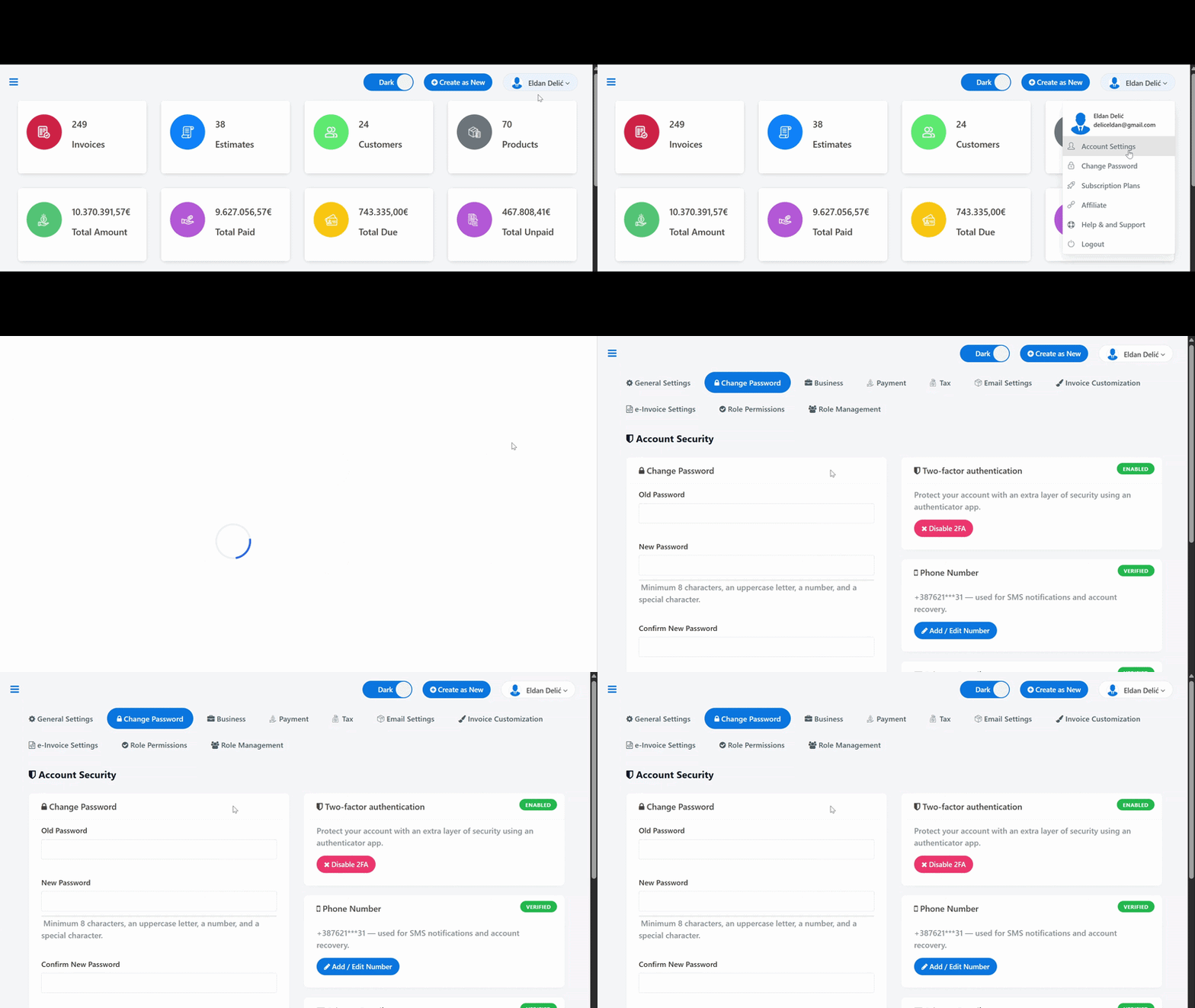
🚀 How to access the Account Security Center? All security options are now located in one clear place:

  • Click on your name in the upper right corner of the screen.
  • From the drop-down menu, click on Change Password.
  • 💡 Quick link: You can also access the settings directly via this link: https://app.adbooks.co/admin/profile/change_password
🔧 Activation and Configuration of Security Features

0. Change Password #

Allows you to regularly update your password for enhanced account security.

How to change your password: In the password change section, enter your old password, then type your new password (ensuring it contains a minimum of 8 characters, an uppercase letter, a number, and a special character), and confirm the new password in the Confirm new password field. Finally, click the Update Password button.

1. Two-Factor Authentication (2FA)

Adds a second layer of protection: even if someone learns your password, they will not be able to log in without access to your phone.

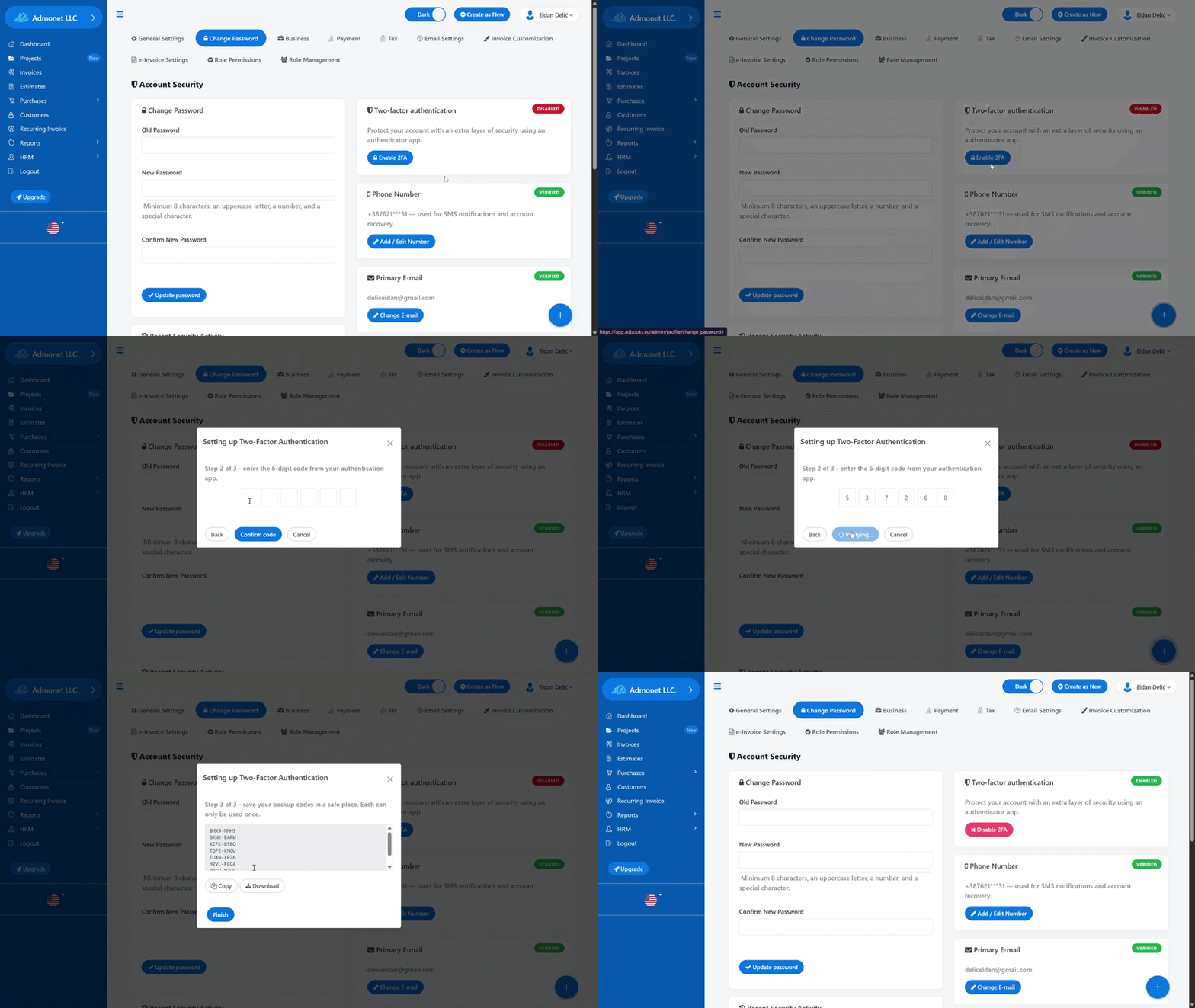
  • How to enable 2FA: In the Two-Factor Authentication section, click Enable 2FA. Scan the QR code with an authenticator app (Google Authenticator, Microsoft Authenticator, Authy), enter the generated 6-digit code, and save the generated backup codes in a secure place.
  • How to disable 2FA: Click Disable 2FA and confirm with your current password (this also invalidates existing backup codes).
2. Email Verification and Recovery #

The foundation of account security used for identity confirmation, password recovery, and receiving notifications.

  • How to verify email: In the Primary Email section, click Resend Verification if the status is not verified, and click the link that arrives in your inbox.
  • Changing the email address: Click Change Email, enter the new address, and confirm your password. For security reasons, the change takes effect only by clicking the link sent to the new address (with a notification sent to the old one).

3. Phone Number and SMS Verification #

Provides an additional channel for security codes and account recovery.

  • How to add/change a number: In the Phone Number section, click Add / Edit Number, confirm your password, enter the number in international format, and enter the received SMS code.
  • SMS recovery: The feature for sending SMS codes for 2FA and account recovery is fully active and functional via the integrated telecommunication operator.

4. Active Devices and Trusted Sessions #

The Security Center monitors which devices and locations are accessing your account.

  • First login / new device: Upon the first login after the update or from a new device, the system requests additional confirmation (2FA code or a one-time email code).
  • “Remember this device”: By checking this option, the device will not request verification for the next 30 days.
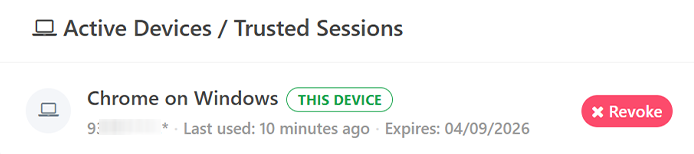
  • Device management: The list displays the device/browser name, IP address, and date of use. By clicking Revoke at any time, you can remove a suspicious or old device.
5. Recent Security Activity #

A transparent, chronological log of everything happening on your account.

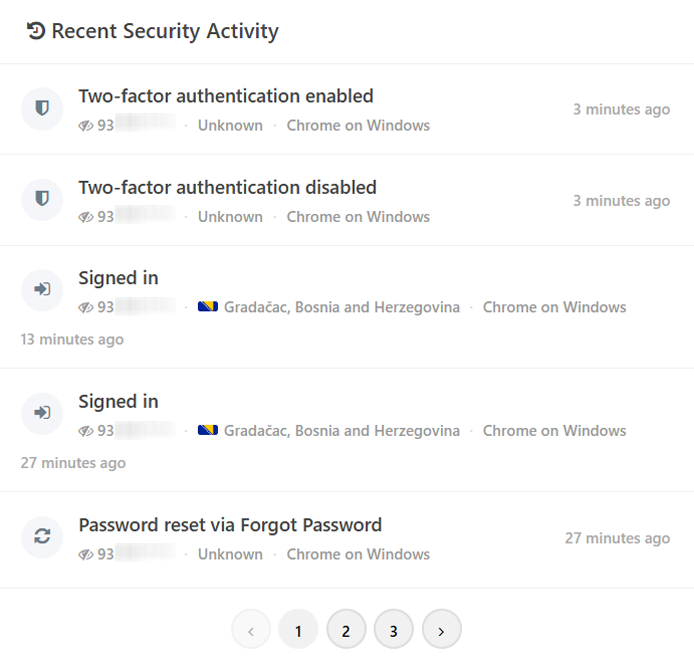
  • What is recorded: Logins, password changes, 2FA modifications, email/phone verifications, and password reset requests.
  • Display: Event type, approximate location (city/country), used device/browser, and timestamp.
  • Unauthorized access detection: By regularly reviewing this list, you can immediately notice suspicious activities, after which you can change your password and revoke trusted devices.
Updated on August 5, 2026

Kako vam je pomogao ovaj članak?

How to edit permissions for accounts created for employees

Leave a Reply Cancel reply

Your email address will not be published. Required fields are marked *

Content
  • 0. Change Password
  • 2. Email Verification and Recovery
  • 3. Phone Number and SMS Verification
  • 4. Active Devices and Trusted Sessions
  • 5. Recent Security Activity

Start your free trial today!

Don’t wait! Start invoicing in just a few minutes and optimize your business.

Try for free
Facebook-f Instagram Youtube Jki-open-book-light
Company
  • Prices
  • About Us
  • My AdBooks Account
  • Blog
  • Knowledge Base
Legal Notices
  • Impressum
  • Terms and Conditions
  • Privacy Policy
  • Contact Us
Languages
  • English
  • Deutsch
  • Bosanski
  • Français
  • Slovenščina
Knowledge Base
  • EN Help
  • DE Hilfe
  • BA Pomoć
  • FR Aide
  • Sl Pomoč
AdBooks Knowledge Base

AdBooks Knowledge Base is your source for all information about our application. Find guides, tutorials, and answers to frequently asked questions in 5 languages: English, German, Bosnian, French, and Slovenian. The knowledge base is here to help you make the most of AdBooks’ features and improve your business.

© AdBooks. All rights reserved.